









Block Webcam & Microphone Solution Enterprise
Multi-Platform Screen DLP, Anti-Screenshot & Forensic WatermarkingxSecuritas Block Webcam is an enterprise solution that prevents unauthorized webcam access by enforcing precise allow/block policies on applications and websites. It protects against malware or spyware that might secretly activate a camera, and logs every webcam access attempt for auditing and compliance.
Policies are created through a web-based management console, where administrators can set rules based on process name, digital signature, or URL. These policies can be assigned to specific users or groups through Active Directory, and can automatically allow, block, or prompt the user when webcam access is requested.
Trusted by more than 350,000 users across government, finance, defense, telecom, and enterprise sectors, Block Webcam is available in cloud and fully offline on-premise editions, making it suitable even for highly secure or isolated networks.
xSecuritas is certified with ISO 27001:2022 and SOC2 Type II, confirming that our security controls, development processes, and operational practices meet internationally recognized standards. These certifications provide additional assurance for enterprises that require strict compliance and secure handling of sensitive information.


Screen Examples
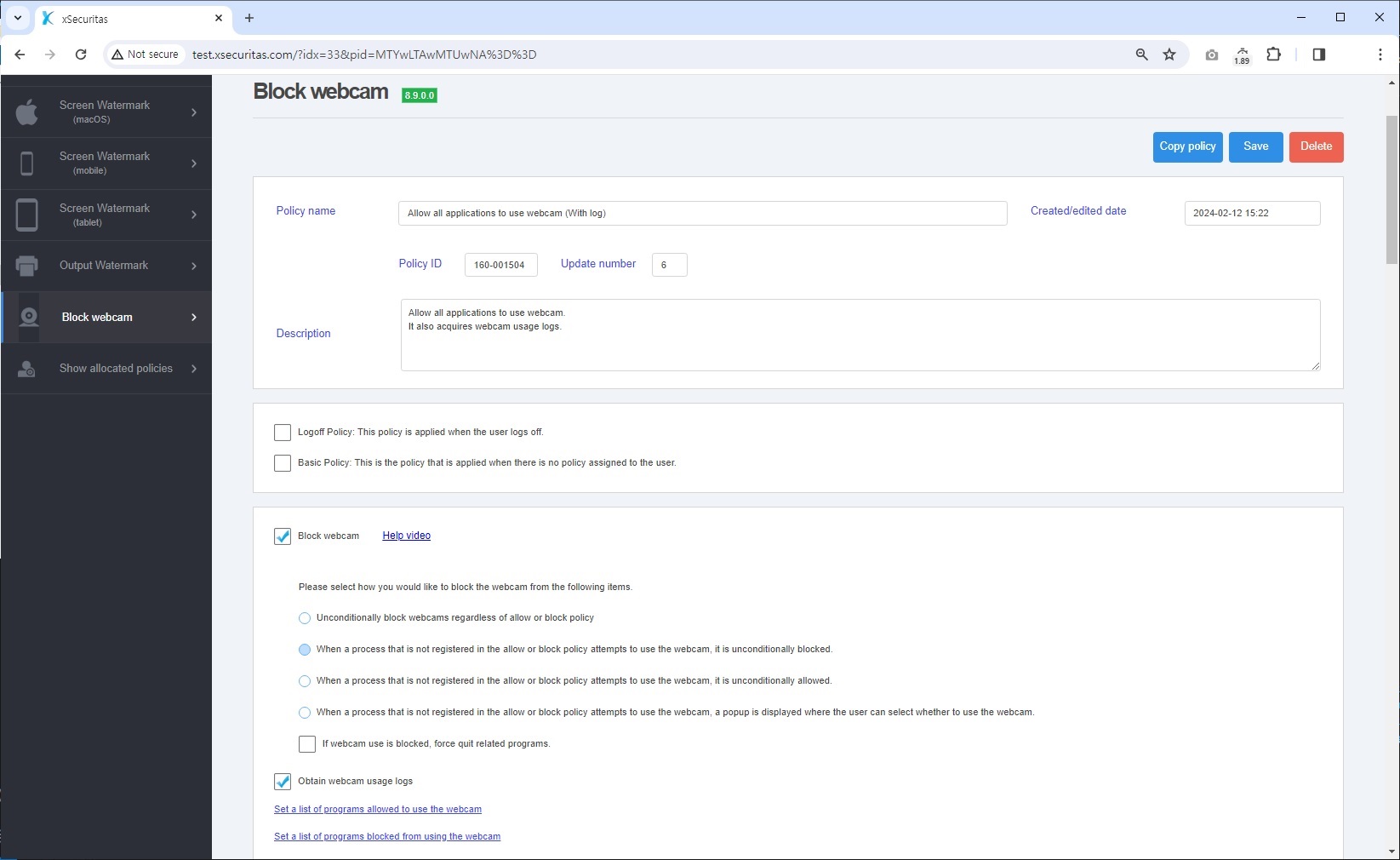
1. Webcam policy settings window on policy server
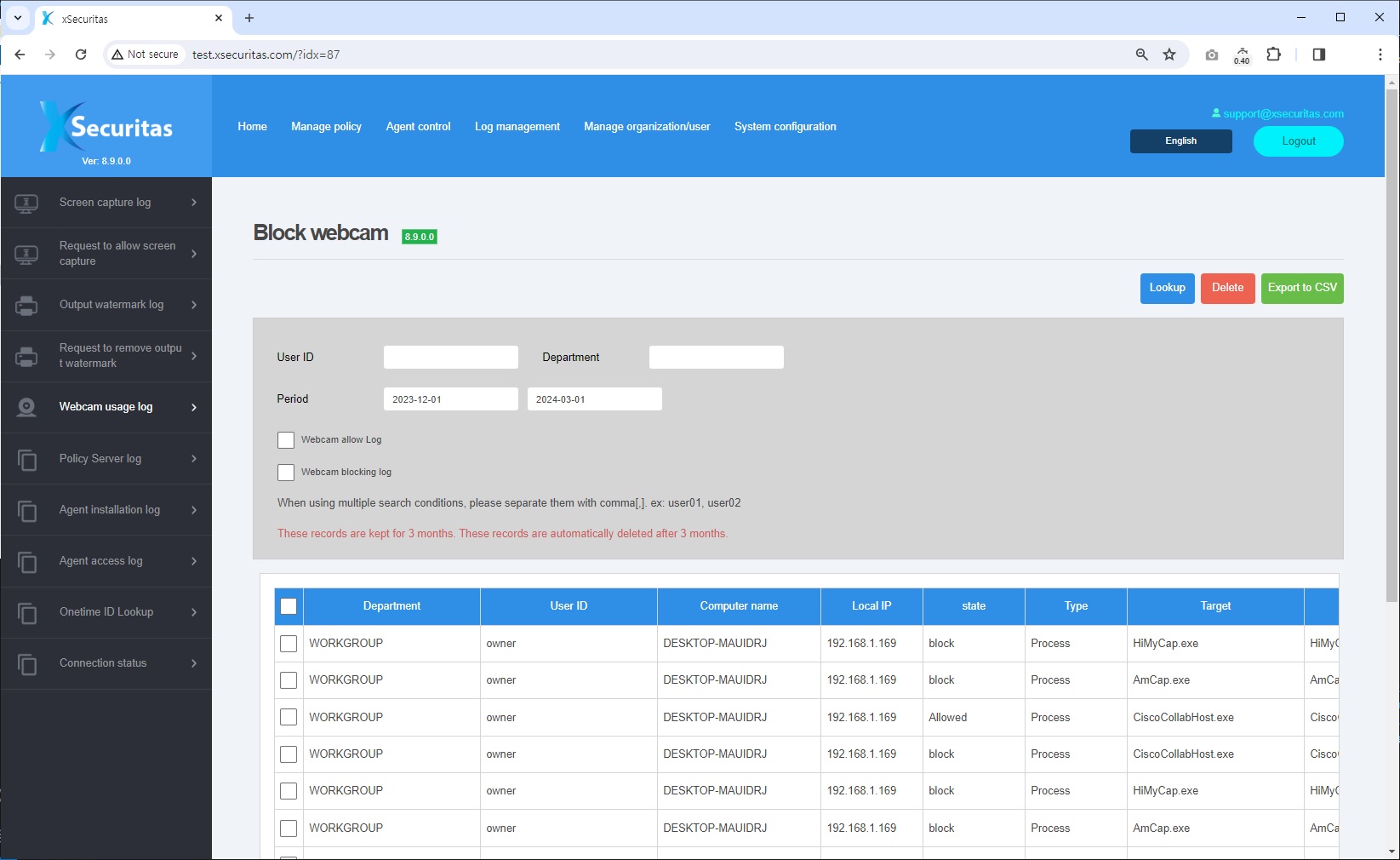
2. Webcam usage log window on policy server
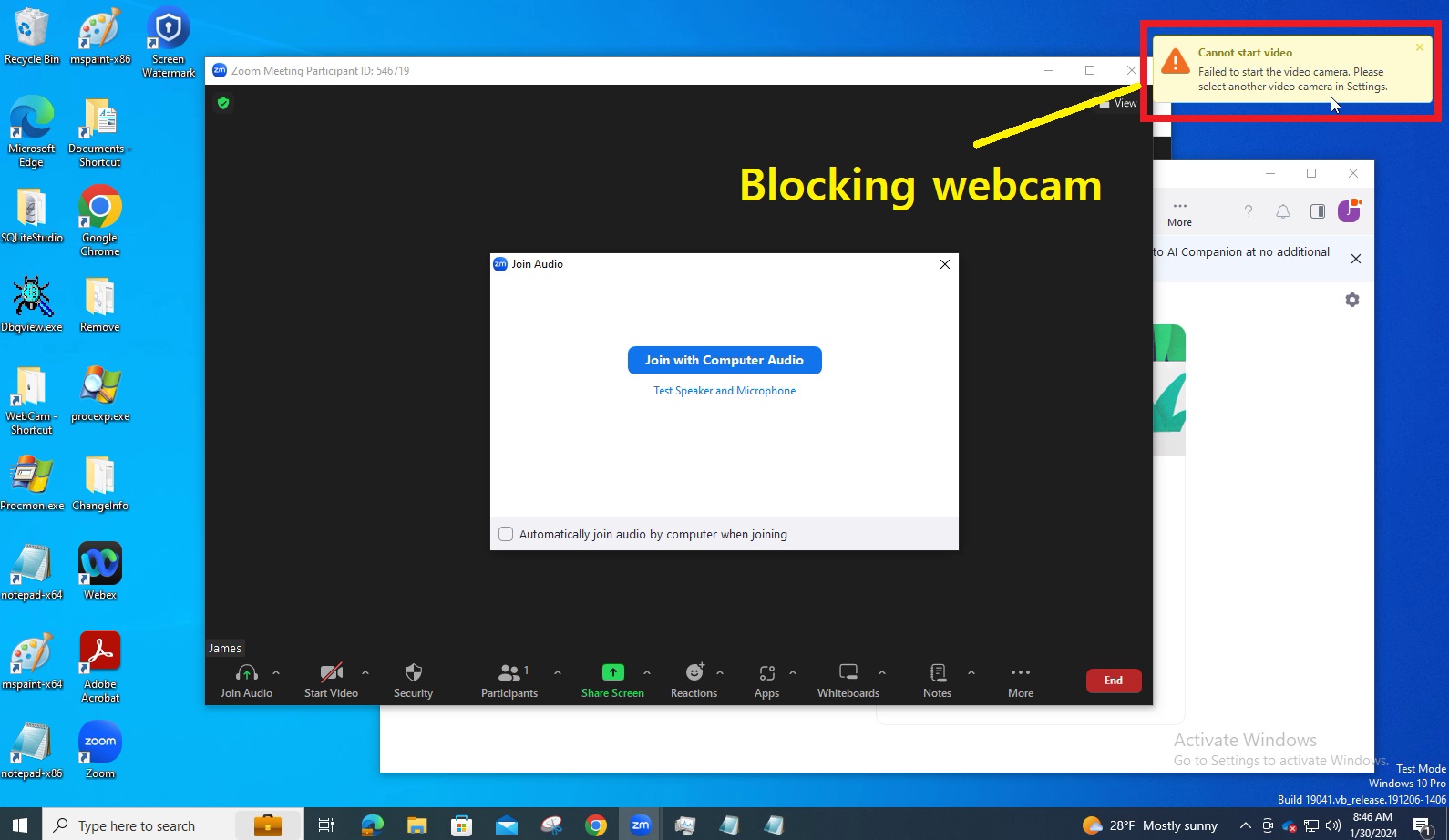
3. If webcam use is denied in ZOOM by policy
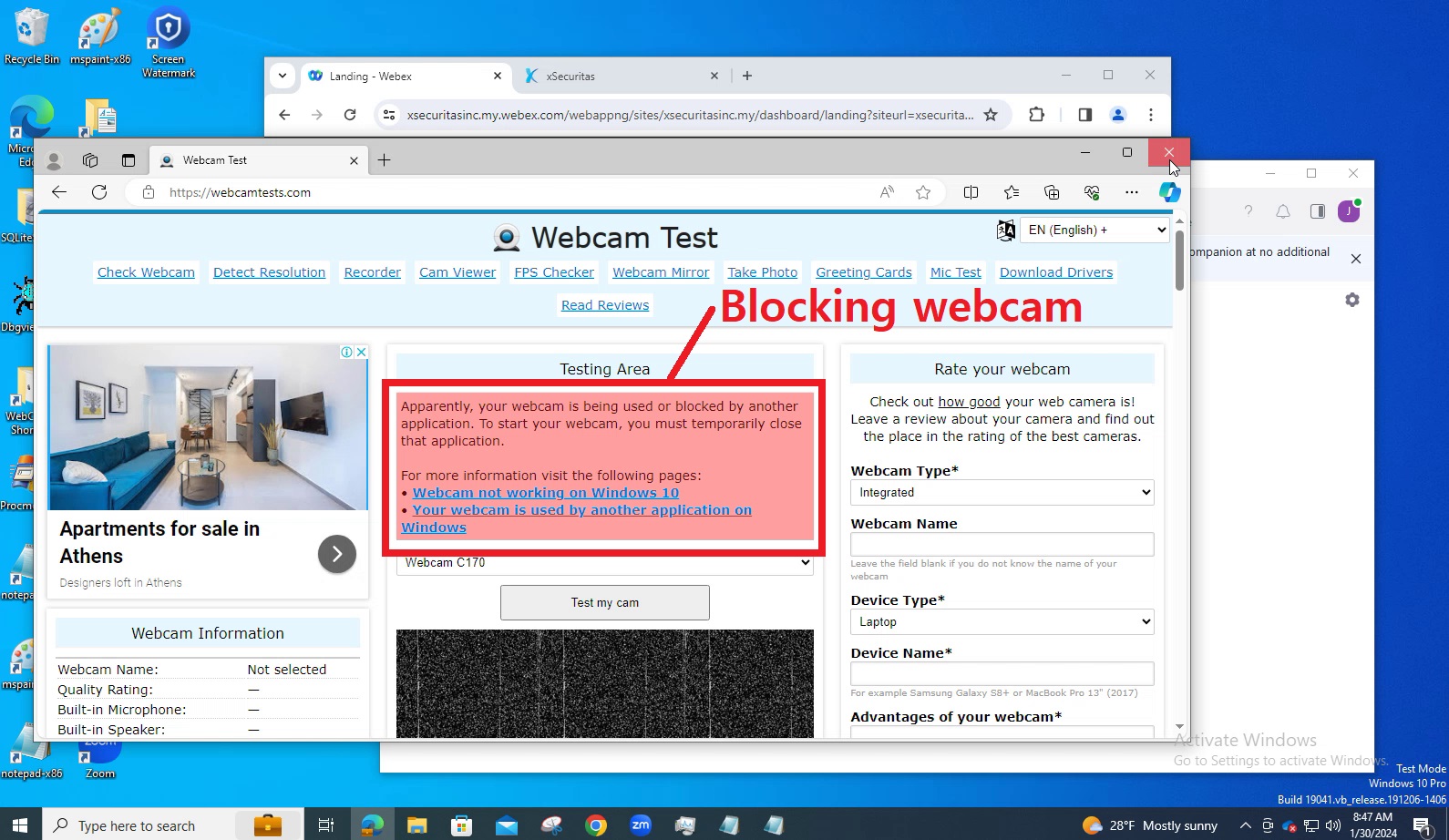
4. If webcam use is denied at the specified URL by policy
Key features
Policy Server
- We provide cloud or on-premises policy servers, and for on-premises, no internet connection is required.
- In the policy server, you can create policies, control agents (quit agent/uninstall agent, etc.), and view logs.
- The administrator creates policies in order to be distributed to groups or users. You can create multiple policies.
- Policies can be assigned by user’s ID, IP-address, Active Directory security group, domain, and sub-domain.
- You can apply the same policy to all users or assign each policy to each group or user.
- Reservation policies are available.
What is Webcam blocking?
- Depending on policy, you can allow or block webcam use.
- Of course, you can decide whether to allow/disallow the webcam by process, digital signature, and URL.
- Additionally, logs of the user’s webcam access are saved on the policy server.
Webcam allow/block policy
- You can create a black list / white list for allowing/blocking webcams, and with this list you can make the following detailed settings.
- Unconditionally block webcams regardless of allow or block policy.
- When a process that is not registered in the allow or block policy attempts to use the webcam, it is unconditionally blocked.
- When a process that is not registered in the allow or block policy attempts to use the webcam, it is unconditionally allowed.
- When a process that is not registered in the allow or block policy attempts to use the webcam, a popup is displayed where the user can select whether to use the webcam.
Supported O/S
 Windows